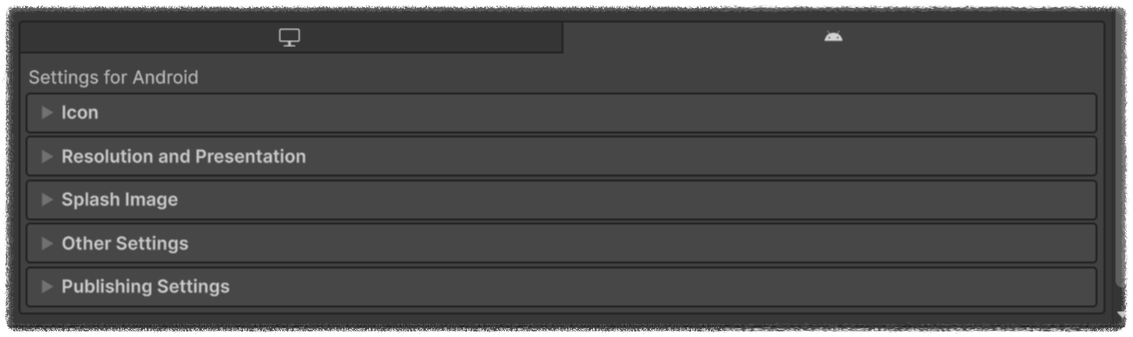
보통 Edit > Project Settings > Player에서 많이 한다. 후술할 항목들도 이곳에서 설정값을 만진다는 가정 하에서만 유효하다. 처음 Player 창에 들어가면 Company Name부터 시작해서 Icon, Resolution and Presentation, Splash Image, Other Settings가 보일 것이다.
기본 설정
Company Name : 제작자의 이름을 적는 곳
Product Name : 게임의 이름을 적는 곳
Version : 앱스토어에 표시될 버전을 적는 곳. 그러나 실제로 버전이 "달라졌다는" 사실은 다른 항목으로 판정한다.
Default Icon : 앱 아이콘
Resolution and Presentation
Orientation > Default Orientation에서 Auto Rotation으로.
Orientation > Allowed Orientation for Auto Rotation에서, 가로 게임이면 Landscape Right & Landscape Left만 체크. 세로 게임이면 Portrait & Portrait Upside Down만 체크.
Splash Image
Logos 리스트에 자신이 원하는 Logo를 추가할 수 있다.
Preview를 통해 취향껏 커스텀하자.
Unity 6.0 버전에서도 Unity Logo를 지울 수 있다.
Other Settings
Identification > Override Default Package Name 체크 해제. (이유 : Unity가 Company Name과 Product Name을 합쳐 자동 생성한 Package Name은 바꾸지 않는 것이 좋다. 이게 다르면 플랫폼이 아예 다른 앱으로 인식하고, 업데이트 대신 "새로 설치"를 종용하기 때문)
Identification > Bundel Version Code는 앱을 업데이트 할 때마다 1씩 늘려줘야 한다. (이유 : 플랫폼에서, 맨 위에 있는 Version이 아닌 Bundle Version Code를 통해 앱의 업데이트 여부를 확인하기 때문)
Identification > Minimum API Level은 자주 바뀌는 편이다. 자신이 앱을 출시할 플랫폼의 정책에 맞춰 설정하자.
Configuration > Scripting Backend를 목적에 맞춰 설정하자. 출시용이라면 IL2CPP로, 빌드 테스트용이라면 Mono로.
Configuration > Target Architectures에서 ARM64에 체크. Google Play Store에 출시하려면 필수다.
Publishing Settings
Project Keystore > Custom Keystore를 체크. 이후 Select... Browse...를 통해 잘 선택한 뒤 (Keystore) Password를 맞게 치면 Project Key > Alias를 선택할 수 있게 된다. 마찬가지로 Password를 맞게 쳐주면 출시 준비 완료!
마지막으로...
Edit > Project Settings > Player가 아닌, File > Build Profiles > Andriod로 가서 Platform Settings 밑에 있는 Build App Bundle (Google Play)를 체크해야 한다.
먼저 game_version을 정해준다. 버전이 다른 경우 다르게 동작할 가능성이 있기 때문이다.
이후 변경한 설정을 바탕으로 Master Server와의 연결을 시도한다.
만일 연결에 성공했다면 다음 단계로 넘어가고, 연결에 실패했다면 연결에 성공할 때까지 계속해서 ConnectUsingSettings()를 호출한다. (여기서 더 나아가서 만일 연결을 시도한지 1분이 넘었다면 개인전 화면으로 넘어가게 만들 수도 있다!)
이제 join button을 눌렀는가?를 동작 기준으로 삼는다.
Master Server와 연결이 되어있는 상태에서 join button을 눌렀다면 RandomRoom에 Join한다.
Master Server와 연결이 되어있지 않은 상태에서 join button을 눌렀다면 다시 ConnectUsingSettings()를 호출한다. (참고로 join button을 누를 수 있다는 사실 자체가 Master Server와 연결이 되었다는 것을 보장하긴 하지만, 혹시 몰라서 넣어둔 것이다!)
Room Joining에 성공했다면 Scene을 전환한다. 여기서 Main Scene은 게임이 이루어지는 Scene이라고 생각하면 된다.
Room Joining에 실패했다면 3인용 Room을 따로 판다. 호스트는 룸을 새로 생성한 클라이언트에게 할당된다.
Lobby Manager 코드
using Photon.Pun; // 고수준 API (90%의 Unity 게임은 이것만 사용해도 상관없음)
using Photon.Realtime; // 저수준 API (세밀한 조작이 필요한 경우 사용)
using UnityEngine;
using UnityEngine.UI;

public class LobbyManager : MonoBehaviourPunCallbacks
{
    [SerializeField] private string game_version;

    [SerializeField] private Text info_text;
    [SerializeField] private Button join_button;

    private void Awake()
    {
        DoInitialSettings();
    }

    private void DoInitialSettings()
    {
        PhotonNetwork.GameVersion = game_version;
    }

    private void Start()
    {
        TryJoiningMasterServer();
    }

    // try joining the master server
    private void TryJoiningMasterServer()
    {
        PhotonNetwork.ConnectUsingSettings(); // use the settings(for now, it's game_version) to connect to the master server
        join_button.interactable = false;
        info_text.text = "trying to join the master server...";
    }

    // automatically called when the connection to master server succeeds
    public override void OnConnectedToMaster()
    {
        join_button.interactable = true;
        info_text.text = "connected (master server)";
    }

    // automatically called when the connection to master server fails
    public override void OnDisconnected(DisconnectCause cause)
    {
        join_button.interactable = false;
        info_text.text = "failed to connect (master server)\nretrying to connect...";
        PhotonNetwork.ConnectUsingSettings();
    }

    // when pressing the join button (UI)
    public void Connect()
    {
        join_button.interactable = false;

        if (PhotonNetwork.IsConnected) // if connected to the master server (true)
        {
            info_text.text = "joining room...";
            PhotonNetwork.JoinRandomRoom(); // if success, OnJoinedRoom() || if fails, OnJoinRandomFailed()
        }
        else // if NOT connected to the master server (false)
        {
            info_text.text = "not connected to the master server!\nretrying to connect...";
            PhotonNetwork.ConnectUsingSettings();
        }
    }

    // when there's no VACANT room
    public override void OnJoinRandomFailed(short returnCode, string message)
    {
        info_text.text = "no vacant room exists.\ncreating a new room...";
        PhotonNetwork.CreateRoom(null, new RoomOptions { MaxPlayers = 3 }); // 룸은 리슨 서버 방식으로 동작함. 룸을 생성한 클라이언트가 호스트로 선정됨.
    }

    // when succeeded to join the room
    public override void OnJoinedRoom()
    {
        info_text.text = "joined the room!";
        PhotonNetwork.LoadLevel("Main"); // LoadLevel != SceneManager.LoadScene("~~~"); 거의 비슷하지만 Photon 쪽이 동기화를 제공함.
    }
}
참고사항
LobbyManager Script는 Monobehaviour 대신 MonoBehaviourPunCallbacks를 상속한다. OnConnectedToMaster와 같은 커스텀 이벤트를 받기 위함이다.
MonoBehaviourPunCallbacks에 있는 커스텀 이벤트를 사용하기 위해선 꼭 override를 해야 한다.
전용 서버(Dedicated Server) : 클라이언트로부터 "행동 입력"을 받는 서버이다. 예를 들어, 클라이언트 A가 "총을 쐈다"라는 행동 입력을 보내면 서버에서 총알이 누군가를 맞췄는지, 만일 맞췄다면 데미지는 얼마나 넣을 것인지 등을 모두 "판정"하여 그 결과를 다른 클라이언트들에게 보내준다. 만일 클라이언트 측에서 조작된 입력(예: 1초에 100발 쏘기, 순간이동 등)을 보낸다면, 서버는 그 유효성을 판단하여 무시할 수 있다. 서버가 해킹되지 않는 이상 클라이언트 측에서 할 수 있는 조작-행동이 아무것도 없기 때문에, 가장 보안성이 높다. 그러나 비용이 가장 많이 든다. --> 배틀그라운드, 롤
리슨 서버(Listen Server) : 클라이언트가 서버 역할도 겸하는 연결 방식이다. 이러한 클라이언트를 "방장 또는 호스트"라고 일컫는다. 전용 서버와 같이 호스트가 유효성을 판정한다. 그러나 호스트 역할을 맡은 클라이언트가 조작된 입력을 보내는 것은 막을 수 없다. 또한 호스트가 중간에 게임을 종료한 경우, 새로운 호스트를 선정하는 절차도 필요해진다. 게임사에서 따로 서버를 운영할 필요가 없어서 비용이 들지 않지만 보안성이 꽤 낮다. --> 마인크래프트, 스타크래프트
P2P(Peer-to-Peer) : 모든 클라이언트가 서로와 소통하는 구조이다. "서버"가 없으므로 따로 유효성을 검사하는 절차가 존재하지 않는다. 행동 입력과 결과 판정을 각자의 클라이언트에서 하며, 계속해서 서로의 월드 속 정보를 동기화한다. 매우 쉽게 구현할 수 있다. 그러나 아무 클라이언트나 조작을 가해도 그 조작이 다른 클라이언트에게 유효성 검사를 거치지 않은 채로 동기화되기 때문에, 가장 보안성이 낮은 연결 방식이다. --> 하이퍼 캐주얼 게임
동작 방식 (Dedicated Server)
전용 서버에서 클라이언트의 룸(서버 인스턴스) 생성 요청을 받는다. 요청이 유효하다면 룸을 생성한다.
전용 서버가 만든 룸을 True World로 선정한다.
전용 서버는 연결된 다른 클라이언트로부터 행동 입력을 실시간으로 받는다. (유효성을 검사한다)
받은 행동 입력은 True World에서만 실행되며, 그 결과를 연결된 다른 클라이언트에게 일방적으로 보낸다.
결과를 받은 이들은 그에 맞춰 각자의 월드를 구현한다.
동작 방식 (Listen Server)
전용 서버에서 클라이언트의 룸 생성 요청을 받는다. 요청이 유효하다면 룸을 생성한다.
호스트를 선정한다.
호스트는 자기 자신 & 연결된 다른 클라이언트로부터 행동 입력을 실시간으로 받는다. (유효성을 검사한다)
받은 행동 입력은 호스트의 월드에서만 실행되며, 그 결과를 자기 자신 & 연결된 다른 클라이언트에게 일방적으로 보낸다.
결과를 받은 이들은 그에 맞춰 각자의 월드를 구현한다.
참고 : 만일 플레이어가 3명이면, 월드도 3개다. 그 중 호스트의 월드를 True World로 선정하고, 그에 맞춰 동기화를 하는 것이다.
동작 방식 (P2P)
전용 서버에서 클라이언트의 룸 생성 요청을 받는다. 요청이 유효하다면 룸을 생성한다.
모든 클라이언트는 룸 안에 있는 다른 모든 클라이언트에게 자신의 행동 입력을 보낸다.
각각의 클라이언트는 받은 행동 입력을 자신의 월드에서 실행한다.
정해진 주기에 맞춰 서로의 "현재 월드 상태"를 동기화한다.
필수적으로 요구되는 서버
위에서 봤듯이 어떤 멀티플레이 시스템을 사용하든지 간에, 매치메이킹을 위한 전용 서버(Dedicated Server)는 반드시 필요하다. 전용 서버에서 모든 것이 이루어지는 게임은 당연히 필요할 것이고, 리슨 서버나 P2P 방식을 이용한다고 하더라도 "게임 시작"을 클라이언트가 요청했을 때 그 요청을 받고 호스트를 지정하거나 IP/포트를 공유할 수 있도록, 지속적으로 대기하고 있는 서버가 필요하기 때문이다.
Window >> Photon Unity Networking >> PUN Wizard를 클릭한다.
만일 Photon Engine 계정이 있다면, Setup Project를 클릭한다. 로그인 하자마자 20 CCU라고 되어있는 창 밑에 AppID가 보일 것이다. 더블 클릭하여 복사해준 뒤, Unity Editor로 돌아와서 "AppId or Email" 칸에 붙여넣고, 밑에 있는 Setup Project를 눌러주면 된다.
만일 Photon Engine 계정이 없다 하더라도, Setup Project를 그대로 클릭한다. 그리고 "AppId or Email" 칸에 자신의 email을 친다. 그러면 그걸 통해서 계정을 생성할 수 있는 웹사이트로 이동할 것이다. 계정을 생성한 뒤, 2번 과정을 따라하면 된다. (만일 이게 잘 안 된다면, 그냥 공식 홈페이지에 들어가서 계정을 직접 생성한 뒤 왼쪽 상단의 Your 탭에서 Apps를 클릭하여 직접 AppId를 찾는 게 빠를 수도 있다!)
using UnityEngine;
using System;
using GoogleMobileAds;
using GoogleMobileAds.Api;
using UnityEngine.SceneManagement;

public class AdManager : MonoBehaviour
{
    public static GameObject ad_manager;
    private BannerView banner_view;

    private void Awake()
    {
        if (ad_manager == null)
        {
            ad_manager = gameObject;
            DontDestroyOnLoad(gameObject);
        }
        else
        {
            Destroy(gameObject);
        }
    }

    public void Start()
    {
        MobileAds.Initialize((InitializationStatus initStatus) => { }); // Initialize the Google Mobile Ads SDK.
        SceneManager.sceneLoaded += OnSceneLoaded;
    }

    private void RequestBanner()
    {
        #if UNITY_ANDROID
            string _adUnitId = "ca-app-pub-3940256099942544/6300978111";
        #elif UNITY_IPHONE
            string _adUnitId = "ca-app-pub-3940256099942544/2934735716";
        #else
            string _adUnitId = "unused";
        #endif

        //Clean up banner ad before creating a new one.
        if (banner_view != null)
        {
            banner_view.Destroy();
        }

        // Create a adaptively-sized banner at top of the screen
        AdSize adaptiveSize = AdSize.GetCurrentOrientationAnchoredAdaptiveBannerAdSizeWithWidth(AdSize.FullWidth);
        banner_view = new BannerView(_adUnitId, adaptiveSize, AdPosition.Bottom);

        // create our request used to load the ad.
        var adRequest = new AdRequest();

        // send the request to load the ad.
        banner_view.LoadAd(adRequest); //Debug.Log("Loading banner ad.");
    }

    private void OnSceneLoaded(Scene scene, LoadSceneMode mode)
    {
        if (scene.name == "AD Scene")
        {
            RequestBanner();
        }
        else
        {
            if (banner_view != null)
            {
                banner_view.Destroy();
            }
        }
    }
}
탑뷰로 진행되는 2D 게임에서, 그림자를 어떻게 구현해야 할지에 대한 가이드가 잘 없다. (그리고 애초에 이런 걸 쉽게 구현할 수 있는 방법이 Unity 6 이전까지는 존재하지가 않았다) 그러나 Unity 6으로 업그레이드 되면서, 2D 관련 Shadow 컴포넌트가 많은 업그레이드를 받았고, 그랬기에 매우 쉽게 구현할 수 있게 됐다! 그래서 오늘은 이 "쉬운 구현법"을 소개해보고자 한다.
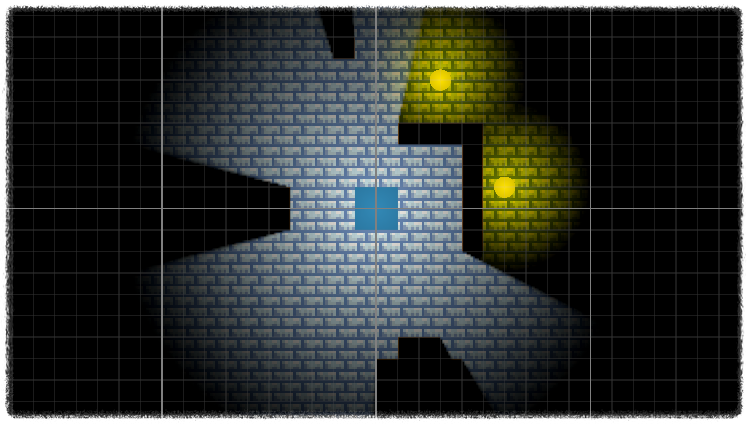
이 가이드가 끝날 무렵에는 이런 것들을 마음대로 갖고 놀 수 있을 것이다;
벽 바깥쪽으로는 광원이 새어나가지 않는다!
Background Tilemap
먼저, 2D 게임에는 3D 게임의 Directional Light와 같은 개념이 없어서, 배경이 될 Object가 없으면, 자기 자신의 위에 비추는 Light가 아닌 경우, 아무런 Light 효과도 볼 수가 없다는 사실을 알아야 한다. 만약 Tilemap에 대해 잘 알지 못한다면, 다음 글을 보면 도움이 많이 될 것이다!
Hierarchy 창에서 우클릭을 한 뒤, 2D Object > Sprites > Square을 선택하여 Brick GameObject를 하나 만들어준다.
그 후, Shadow Caster 2D 컴포넌트를 추가한다.
Shadow Caster 2D 컴포넌트에서, Casting Option을 "Cast And Self Shadow"로 한다. 이 옵션은 자기 자신(Sprite 기준으로)의 위쪽에도 Shadow를 Cast하게 만든다.
Shadow Caster 2D 컴포넌트에서, Alpha Cutoff를 0으로 한다. (이걸 안 하면, "Cast And Self Shadow"를 사용했을 때 그림자 사이에 실같은 틈이 생긴다)
이제 이렇게 만든 GameObject를 Assets 창으로 드래그하여 Prefab로 만들면 된다.
Brick Tilemap
위에서 만들었던 Background Tilemap은 그대로 두고, 새로운 "Brick" Tilemap을 하나 만들자. 이 Tilemap에는 처음 만들었을 시에 기본적으로 추가되어있는 "Tilemap", "Tilemap Renderer" 컴포넌트 말고도, "Composite Shadow Caster 2D" 컴포넌트도 추가해야 한다.
이후 Tilemap Palette를 열고, 시선을 Tile Palette의 (적당한) 왼쪽 아래로 옮기면 "Default Brush"가 보일 것이다. 이건 어떤 브러쉬를 사용할지 결정하는 옵션이다. 이 브러쉬를 GameObject Brush로 바꾼 뒤, Cells를 클릭하면 "Element 0"이 보일 것이다.
이 Element 0을 클릭하면 여러 가지 것들이 보일텐데, 지금은 Game Object에 우리가 위에서 만든 Brick Prefab을 넣어주기만 하면 된다.
Prefab을 넣은 뒤, Tile Palette의 (적당한) 오른쪽 위로 시선을 옮기면 "연필/격자/구"가 보일 텐데, 여기서 "연필 모양"이 "Toggles Tile Palette Edit"이다. 이 모드를 활성화하면 Tilemap을 편집할 수 있다. 이걸 켜준 뒤 Palette의 아무 곳이나 클릭하면 Prefab이 Palette 위에 저장된다. (Toggles Tile Palette Edit 모드를 해제한 뒤) 이제 이걸 마음대로 Scene에 칠하면 된다.
Player
Hierarchy 창에서 우클릭을 한 뒤, 2D Object > Sprites > Square을 선택하여 Player GameObject를 하나 만들어준다.
Light 2D 컴포넌트를 추가해준다. Light Type은 "Spot"으로, Radius는 5 정도로 해준다.
기본적으로 Shadows는 Light 2D 컴포넌트에서 설정할 수 있는 옵션이므로, "이 객체가 발산하는 빛"에 대한 그림자가 어떻게 드리우도록 만들지 결정하는 것이다.
Strength는 그림자의 불투명도를 조절한다. 1이라면, 그림자가 드리운 영역이 완전히 검게 표시된다. 당연히 다른 오브젝트도 안 보인다. 0이라면, 그림자가 아예 안 보인다.
Softness는 "그림자-모서리"의 표현 방식을 결정한다. 이 값이 클수록 그림자의 모서리가 좀 더 부드럽게 보인다.
Falloff Strength는 Softness와 연계되는 옵션이다. 이 값이 작을수록 그림자의 모서리가 보다 퍼지는 느낌이 된다.
비록 Player GameObject는 그림자가 잘 적용되는지 테스트하기 위해 만든 것이지만, 움직이게 만들고 싶다면 다음과 같은 코드를 적용해주면 된다!
코드
작업중...
약간의 수정을 거친 뒤 더 좋아진 코드로 돌아오겠다!
Torch
Player GameObject와 완전히 똑같다. 다만 차이점이라면 움직일 수 없다는 정도?
조금 더 재미있게 사용해보고 싶다면, Torch가 지닌 Light 2D 컴포넌트에서, Color을 바꿔보면 좋다. 예를 들어, Torch를 2개 만든 뒤, 하나는 Color를 빨간색으로, 다른 하나는 파란색으로 한 뒤 Raduis를 좀 크게 해서 겹치는 범위를 만들어보면, 보라색이 되는 것을 확인할 수 있다. (분명 빛인데, 색처럼 섞인다!)