
using UnityEngine;

public class DoubleLinkedList
{
    private class Node
    {
        public string data;
        public Node prev;
        public Node next;

        public Node(string data)
        {
            this.data = data;
            prev = null;
            next = null;
        }
    }

    public int Length { get; private set; }
    private Node head;
    private Node tail;

    public DoubleLinkedList()
    {
        Length = 0;
        head = null;
        tail = null;
    }

    public void Append(string data)
    {
        Node newNode = new Node(data);
        Length++;

        if (head == null)
        {
            head = newNode;
            tail = newNode;
        }
        else
        {
            tail.next = newNode;
            newNode.prev = tail;
            tail = newNode;
        }
    }

    public int Remove(string value)
    {
        if (Length == 0)
        {
            return -1;
        }
        else if (Length == 1)
        {
            if (IsIncluded(value) == true)
            {
                head = null;
                tail = null;
                Length--;
                return 0;
            }
            else
            {
                return -1;
            }
        }
        else //if Length >= 2
        {
            Node current = head;
            for (int i = 0; i < Length; i++)
            {
                if (current.data == value)
                {
                    if (current == head)
                    {
                        head.next.prev = null;
                        head = head.next;
                        Length--;
                        return 0;
                    }
                    else if (current == tail)
                    {
                        tail.prev.next = null;
                        tail = tail.prev;
                        Length--;
                        return 0;
                    }
                    else
                    {
                        current.next.prev = current.prev;
                        current.prev.next = current.next;
                        Length--;
                        return 0;
                    }
                }
                current = current.next;
            }
            return -1;
        }
    }

    public void Clear() // == RemoveAll()
    {
        // 어짜피 Garbage Collector 때문에 굳이 free를 안 해줘도 다 지워질 운명임.
        Length = 0;
        head = null;
        tail = null;
    }

    public int Insert(string data, int index) // == InsertAfter
    {
        if (index < 0 || index >= Length) // index : 0 ~ (Length - 1), Length >= 1
        {
            return -1;
        }
        else
        {
            Node newNode = new Node(data);
            if (index == 0) // insert after head
            {
                if (head.next == null)
                {
                    Append(data);
                    return 0;
                }
                else
                {
                    newNode.next = head.next;
                    head.next.prev = newNode;
                    head.next = newNode;
                    newNode.prev = head;
                    Length++;
                    return 0;
                }
            }
            else if (index == Length - 1) // insert after tail
            {
                Append(data);
                return 0;
            }
            else // insert at middle
            {
                Node current = head;
                for (int i = 0; i < index; i++)
                {
                    current = current.next;
                }
                newNode.next = current.next;
                current.next.prev = newNode;
                current.next = newNode;
                newNode.prev = current;
                Length++;
                return 0;
            }
        }
    }

    public int Replace(int index, string value)
    {
        if (Length == 0 || index < 0 || index >= Length)
        {
            return -1;
        }
        else
        {
            Node current = head;
            for (int i = 0; i < index; i++)
            {
                current = current.next;
            }
            current.data = value;
            return 0;
        }
    }

    public string GetData(int index)
    {
        if (Length == 0 || index < 0 || index >= Length)
        {
            return "null";
        }
        else
        {
            Node current = head;
            for (int i = 0; i < index; i++)
            {
                current = current.next;
            }
            return current.data;
        }
    }

    public int GetIndex(string value)
    {
        Node current = head;
        for (int i = 0; i < Length; i++)
        {
            if (current.data == value)
            {
                return i;
            }
            current = current.next;
        }
        return -1;
    }

    // GetLength는 필요없음. 왜냐하면 { get; private set; }을 통해 밖에서도 보이는 값으로 만들어놨기 때문.

    public bool IsIncluded(string value)
    {
        Node current = head;
        for (int i = 0; i < Length; i++)
        {
            if (current.data == value)
            {
                return true;
            }
            current = current.next;
        }
        return false;
    }

    public void PrintList()
    {
        Node current = head;
        for (int i = 0; i < Length; i++)
        {
            Debug.Log(current.data);
            current = current.next;
        }
    }
}Unity
[자료구조] Double Linked List (C#)
즐거운 시간 보내세요~
[Unity] 터치와 드래그 입력을 구별하는 코드
즐거운 시간 보내세요~
서론
요새 모바일 게임에 관심이 좀 생겼는데, 그러다가 모바일 게임들은 "입력"을 받는 방식이 상당히 한정되어 있다는 사실을 깨달았다. 그래서 터치와 드래그를 구별하는 코드를 한 번 짜봤다.
코드
using UnityEngine;

public class Node : MonoBehaviour
{
    private SpriteRenderer sr;

    [SerializeField] private bool isSelected;
    [SerializeField] private Vector2 startPos;

    private void Awake()
    {
        sr = GetComponent<SpriteRenderer>();

        isSelected = false;
    }

    private void OnMouseDown()
    {
        startPos = (Vector2)Camera.main.ScreenToWorldPoint(Input.mousePosition);
    }

    private void OnMouseUp()
    {
        if ((Vector2)Camera.main.ScreenToWorldPoint(Input.mousePosition) == startPos)
        {
            isSelected = !isSelected;
            if (isSelected)
            {
                sr.color = new Color(1, 1, 1, 1f);
            }
            else
            {
                sr.color = new Color(0, 0, 0, 0.25f);
            }
        }
    }

    private void OnMouseDrag()
    {
        if (isSelected)
        {
            Vector3 mousePosition = Camera.main.ScreenToWorldPoint(Input.mousePosition);
            transform.position = new Vector3(mousePosition.x, mousePosition.y, 0);
        }
        else
        {
            return;
        }
    }
}[Unity] 게임에 소리를 추가하는 법
즐거운 시간 보내세요~
간단한 방법 (동시에 플레이되는 소리의 종류가 한 가지밖에 없을 때)
더보기
AudioSource 컴포넌트를 이용하면 된다.
- 원하는 GameObject를 선택한 뒤, AudioSource 컴포넌트를 부착한다.
- 이 컴포넌트의 Audio Resource 부분에 소리 파일(Audio Clip)을 드래그해 넣는다. (소리 파일의 형식은 주로 .wav나 mp3이다)
- 이렇게 하면 플레이(게임 시작) 버튼을 누르자마자 지정한 소리가 나온다.
그러나 위의 간단한 방법에는 상당히 많은 문제가 있는데,
1. 원할 때 소리를 플레이할 수 없다는 것
2. 코드를 좀 짜서, 1번 문제를 해결했다고 하더라도, 두 종류 이상의 효과음을 한 번에 플레이할 수 없다. (한 효과음이 재생되고 있는 도중에, 다른 효과음이 나온다면, 재생되고 있던 효과음이 중단된다.)
그렇다면 보다 많은 종류의 효과음이 동시에 플레이될 수 있는 구조를 만들려면 어떻게 해야 할까?
구체적인 방법 (동시에 플레이되는 소리의 종류가 두 가지 이상일 때)
여러 개의 AudioSource 컴포넌트를 이용하면 된다.
그러나 많은 수의 AudioSource 컴포넌트를 각각의 GameObject에 붙이고, 관리하는 것은 매우 힘들기 때문에, AudioManager 객체를 하나 만들어줘야 한다.
다음은 AudioManager 클래스의 코드이다.
using Unity.VisualScripting;
using UnityEngine;

public class AudioManager : MonoBehaviour
{
    [SerializeField] private AudioClip bgmClip;
    private AudioSource bgmPlayer;

    [SerializeField] private AudioClip[] sfxClips;
    private AudioSource[] sfxPlayers;

    private void Awake()
    {
        bgmPlayer = gameObject.AddComponent<AudioSource>();
        bgmPlayer.clip = bgmClip;

        sfxPlayers = new AudioSource[sfxClips.Length];
        for (int i = 0; i < sfxClips.Length; i++)
        {
            sfxPlayers[i] = gameObject.AddComponent<AudioSource>();
            sfxPlayers[i].clip = sfxClips[i];
        }
    }

    private void Start()
    {
        PlayBGM();
    }

    private void PlayBGM()
    {
        bgmPlayer.loop = true;
        bgmPlayer.Play();
    }

    public void PlaySFX(int index)
    {
        sfxPlayers[index].Play();
    }
}
(참고로 "[SerializedField] private" <-- 이 구절은 private 멤버 변수를 public하게 Inspector 창에서 접근할 수 있도록 만들지만, 멤버 변수 자체는 private의 성질을 지니도록 하는 관용어구...와 같은 것이다. 이 코드를 볼 때는 간단하게 [SerializedField] private == public이라고 생각하면 된다. 아니면 그냥 신경쓰지 않아도 된다! 그냥 아무 의미가 없는 것으로 생각해도 코드를 이해하는 데는 아무런 지장이 없다!)
보통 Manager류 코드는 빈 객체(Empty GameObject)에다가 Manager용 스크립트만 부착해서 사용한다. AudioManager도 그런 식으로 사용할 것을 가정하고 만들었다.
bgm(배경음악) 관련 부분부터 보면 이해하기 편할 것이다.
bgm 관련 부분
더보기
- bgmClip 변수를 통해, AudioClip(소리 파일)을 받을 공간을 하나 형성해준다. (이 변수는 [SerializedField] private을 통해 형성되었기 때문에, Inspector 창에서 직접 소리 파일(wav, mp3)을 드래그해 넣을 수 있다.)
- bgmPlayer = gameObject.AddComponent<AudioSource>();를 통해 bgmPlayer 변수에 새로 생성한 AudioSource 컴포넌트를 할당(참조)해준다. 참고로 새로 생성한 AudioSource 컴포넌트는 AudioManager GameObject에 붙는다. (아까 말한 빈 객체에 붙는다.)
이렇게 하면 게임을 실행하자마자, "bgm용 AudioClip"만을 위한 AudioSource 컴포넌트가 AudioManager GameObject에 생성되게 된다.
그 이후, Start() 메서드와 PlayBGM() 메서드를 통해 배경음악을 재생해주면 된다. (참고로 AudioSource 컴포넌트는, 이 컴포넌트에 할당되어 있는 AudioClip(Audio Resource)을 반복재생(loop)할지 결정할 수 있다. 그게 bgmPlayer.loop = true;로 표현된 것이다.)
sfx 관련 부분
(bgm 관련 부분과 거의 같다. bgm은 Audio Clip이 하나고, sfx는 여러 개라는 것이 유일한 차이점이다.)
더보기
- sfxClips 배열을 통해, AudioClip(소리 파일)들을 받을 공간을 하나 형성해준다. (이 배열은 [SerializedField] private을 통해 형성되었기 때문에, Inspector 창에서 직접 소리 파일(wav, mp3)을 드래그해 넣을 수 있다.)
- sfxPlayers = new AudioSource[sfxClips.Length];를 통해 sfxClip의 개수만큼 sfxPlayer(AudioSource 컴포넌트)를 위한 공간을 만들어준다. --> 이는 각각의 sfxClip을 위한 AudioSource 컴포넌트를 AudioManager에 부착하기 위함이다.
- for문을 통해, sfxPlayers[i]에 AudioSource 컴포넌트를 "각각" 할당한다. 그 뒤, sfxPlayers[i]의 Audio Resoure(Audio Clip)을 sfxClips[i]로 설정해준다.
이렇게 하면 게임을 실행하자마자, "sfx용 AudioClip"만을 위한 AudioSource 컴포넌트가 AudioManager GameObject에 생성되게 된다.
그 이후, Start() 메서드와 PlaySFX() 메서드를 통해 배경음악을 재생해주면 된다.
예를 들어, 만약에 Player가 점프할 때 소리를 플레이하고 싶다? 그러면..
- private AudioManager am;
- private void Awake() { am = FindFirstObjectByType<AudioManager>(); }
- public void Jump() { am.PlaySFX(5); }
위와 같은 방식으로 해주면 된다. (만약에 PlaySFX(숫자) 이런 형식이 불편하다면, enum을 사용할 수도 있다.)
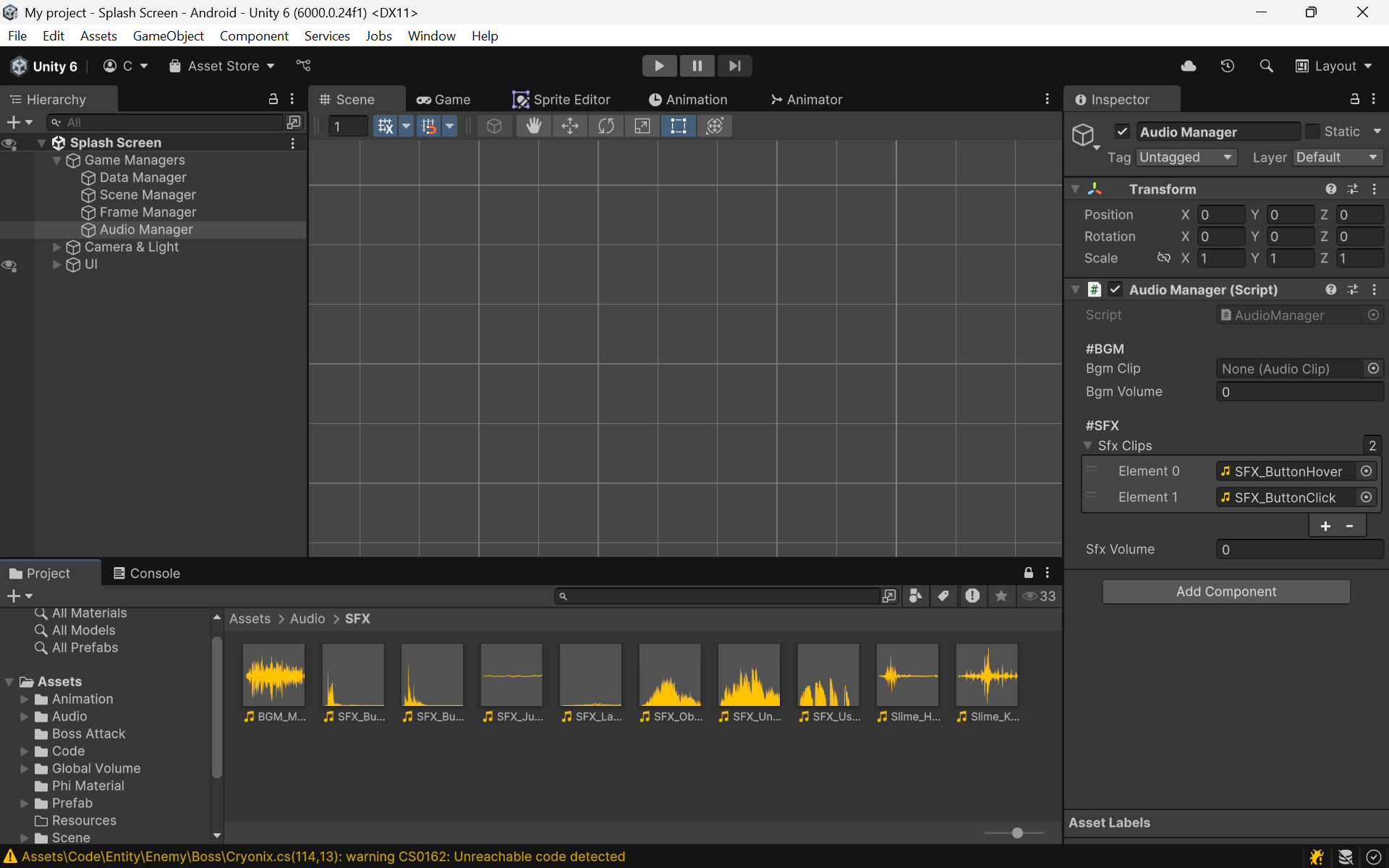
읽어주셔서 감사합니다!
[자료구조] 개요
즐거운 시간 보내세요~
개요
Unity에서 Delegate란, 여러 메서드를 한 번에 호출할 수 있도록 하는 시스템이다. 또한 런타임 도중에, 호출할 메서드를 변경할 수 있다.
선언법
using System.Collections;
using System.Collections.Generic;
using UnityEngine;

public class Test : MonoBehaviour
{
    delegate void UsingSkill();
    UsingSkill usingSkill;
}
선언은 이런 식으로 할 수 있다.
예시 1
using System.Collections;
using System.Collections.Generic;
using UnityEngine;

public class Test : MonoBehaviour
{
    delegate void UsingSkill();
    UsingSkill usingSkill;

    void Start()
    {
    	usingSkill += LaunchFireball;
        usingSkill += LaunchIcicleSpear;
        usingSkill += WieldLeafBlade;
        usingSkill();
    }

    private void LaunchFireball()
    {
        Debug.Log(">> The [Fireball] has launched!");
    }

    private void LaunchIcicleSpear()
    {
        Debug.Log(">> The [Icicle Spear] has launched!");
    }

    private void WieldLeafBlade()
    {
        Debug.Log(">> The [Leaf Blade] has wielded!");
    }
}
이 코드는,
1) +=를 통해 사용할 메서드를 usingSkill에 추가한다.
2) 그 후, usingSkill()을 통해 "추가된 메서드"를 모두 실행한다.
와 같은 방식으로 동작한다.
출력 결과는:
>> The [Fireball] has launched!
>> The [Icicle Spear] has launched!
>> The [Leaf Blade] has wielded!
이러하다.
다음 예시를 살펴보자.
예시 2
using System.Collections;
using System.Collections.Generic;
using UnityEngine;

public class Test : MonoBehaviour
{
    delegate void UsingSkill();
    UsingSkill usingSkill;

    void Start()
    {
        usingSkill += LaunchFireball;
        usingSkill += LaunchIcicleSpear;
        usingSkill += WieldLeafBlade;
        usingSkill += LaunchFireball;
        usingSkill();
    }

    private void LaunchFireball()
    {
        Debug.Log(">> The [Fireball] has launched!");
    }

    private void LaunchIcicleSpear()
    {
        Debug.Log(">> The [Icicle Spear] has launched!");
    }

    private void WieldLeafBlade()
    {
        Debug.Log(">> The [Leaf Blade] has wielded!");
    }
}
[예시 1]과 이 코드의 차이점은 void Start()에 usingSkill += LaunchFireball;가 한 줄 더 추가되었다는 것이다.
출력 결과는:
>> The [Fireball] has launched!
>> The [Icicle Spear] has launched!
>> The [Leaf Blade] has wielded!
>> The [Fireball] has launched!
이러하다.
여기서 주목할 점은, 같은 메서드를 한 번 더 추가한다면 시행 횟수가 한 번 더 추가될 뿐이라는 점이다.
예시 3
using System.Collections;
using System.Collections.Generic;
using UnityEngine;

public class Test : MonoBehaviour
{
    delegate void UsingSkill();
    UsingSkill usingSkill;

    void Start()
    {
        usingSkill += LaunchFireball;
        usingSkill += LaunchIcicleSpear;
        usingSkill += WieldLeafBlade;
        usingSkill += LaunchFireball;
        usingSkill += LaunchIcicleSpear;

        usingSkill -= LaunchIcicleSpear;
        usingSkill();
    }

    private void LaunchFireball()
    {
        Debug.Log(">> The [Fireball] has launched!");
    }

    private void LaunchIcicleSpear()
    {
        Debug.Log(">> The [Icicle Spear] has launched!");
    }

    private void WieldLeafBlade()
    {
        Debug.Log(">> The [Leaf Blade] has wielded!");
    }
}
[예시 2]와 이 코드의 차이점은 void Start()에,
usingSkill += LaunchIcicleSpear;와
usingSkill -= LaunchIcicleSpear;가 추가되었다는 것이다.
참고로 +=를 통해 사용할 메서드를 usingSkill에 추가할 수 있다면,
-=를 통해서는 usingSkill로부터 메서드를 제거할 수 있다.
출력 결과는:
>> The [Fireball] has launched!
>> The [Icicle Spear] has launched!
>> The [Leaf Blade] has wielded!
>> The [Fireball] has launched!
이러하다.
여기서 주목할 점은, -=는 배열의 뒤에서부터 제거할 메서드를 탐색한다는 점이다. 만일 앞에서부터 제거할 메서드를 탐색했다면, 출력 결과는:
더보기
>> The [Fireball] has launched!
>> The [Leaf Blade] has wielded!
>> The [Fireball] has launched!
>> The [Icicle Spear] has launched!
이런 식으로 달라졌을 것이다.
(혹시라도 이걸 보고 내용을 잘못 이해할까봐 접은글로 표시했다.)
예시 4
using System.Collections;
using System.Collections.Generic;
using UnityEngine;

public class Test : MonoBehaviour
{
    delegate void UsingSkill();
    UsingSkill usingSkill;

    void Start()
    {
        usingSkill += LaunchFireball;
        usingSkill += LaunchIcicleSpear;
        usingSkill += WieldLeafBlade;
        usingSkill += LaunchFireball;
        usingSkill += LaunchIcicleSpear;

        usingSkill -= LaunchIcicleSpear;

        usingSkill = LaunchIcicleSpear;
        usingSkill();
    }

    private void LaunchFireball()
    {
        Debug.Log(">> The [Fireball] has launched!");
    }

    private void LaunchIcicleSpear()
    {
        Debug.Log(">> The [Icicle Spear] has launched!");
    }

    private void WieldLeafBlade()
    {
        Debug.Log(">> The [Leaf Blade] has wielded!");
    }
}
[예시 3]과 이 코드의 차이점은 void Start()에,
usingSkill = LaunchIcicleSpear;가 추가되었다는 것이다.
-=나 +=가 아닌, =임에 주목하자.
출력 결과는:
>> The [Icicle Spear] has launched!
이러하다.
여기서 주목할 점은, 앞에서 뭘 추가했고, 제거했든지간에 usingSkill에는 LaunchIcicleSpear 메서드만 남았다는 점이다.
마치며
delegate는 처음 접하면 좀 당황스러울 수도 있지만, 쓰다보면 상당히 유용한 유니티의 내장 기능이라는 것을 깨닫게 될 것이다.
예를 들어, 룬 시스템을 만든다고 했을 때, 무기에 단 룬이 어떤 종류인지에 따라서 무기를 휘둘렀을 때 발동할 메서드를 if문 여러 개를 사용하는 대신, delegate로 한 번에 묶어서 관리할 수 있다.
유의사항
만일 delegate에
1) 아무것도 할당하지 않았거나,
2) -= 연산자로 인해 모든 메서드가 없어졌을 시엔,
delegate에는 null이 있는 것으로 간주된다. 이는 참조 시, NullReferenceException을 야기한다.
따라서 delegate를 사용할 때는 항상, 이런 식의 처리를 해주는 것이 좋다:
if (usingSkill != null) { usingSkill(); }
또한 += 연산자로 delegate에 메서드를 추가할 땐, 선언한 delegate와 형식이 같은 메서드만 추가할 수 있다. 예를 들어:
1) delegate void UsingSkill();을 했다면 여기에는 void 리턴 타입을 지닌 메서드만 추가할 수 있다.
2) delegate int UsingSkill(float index);를 했다면 여기에는 int 리턴 타입을 지니면서, float 매개변수를 지니는 메서드만 추가할 수 있다.
포스팅을 읽어주셔서 감사합니다!
Prefab (Unity)
즐거운 시간 보내세요~
Prefab이란?
자주 쓰이는 GameObject를 재사용하기 위해 Asset화 한 것이다.
사용처
정말 많다. 총알/화살과 같은 Projectile, Hit/Death 효과를 책임지는 Particle, 심지어 Enemy나 Player도 Prefab화의 대상이다. Scene Template에도 사용된다.
Prefab Override
Instance(원본 Prefab으로부터 Scene에 Instance된 GameObject)를 수정한 경우:
- 이 행위 자체는 원본 Prefab에 영향을 미칠 수 없다.
- 원본 Prefab과의 변경점이 Override되어 저장된다. (Override된 Instance!)
- Apply와 Revert 옵션이 활성화된다;
(Apply : Instance로 원본 Prefab을 덮어씌움 / Revert : 원본 Prefab으로 Instance를 덮어씌움) - 이런 식으로 Apply나 Revert를 한 경우, "원본 Prefab"과 "Instance"의 차이는 고려되지 않는다. 그냥 그대로 덮어씌워버린다.
원본 Prefab을 수정한 경우:
- Instance가 Override되지 않은 경우, 원본 Prefab으로 Instance를 덮어씌운다.
- Instance가 Override된 경우, 수정된 부분을 확인한다;
>> 만일 수정된 부분이 같다면, 원본 Prefab에서 수정한 부분이 Instance에 적용되지 않는다. (예시 : Instance Override를 scale.x를 1 -> 2로 바꿈으로써 했다. 원본 Prefab에선 scale.x를 1 -> 6으로 바꿨다. GIT CONFLICT!)
>> 만일 수정된 부분이 다르다면, 원본 Prefab에서 수정한 부분이 Instance에 적용된다. - 참고로 원본 Prefab을 수정할 땐 Auto Save를 끄고 작업하는 것이 좋다. Instance와는 다르게 Apply나 Revert 옵션을 선택하는 과정이 존재하지 않으므로...
Scene Template과의 연계
Scene Template의 옵션에서, 지정한 Assets를 Clone 할 것인지 Reference 할 것인지 선택할 수 있다. 이때, Prefab의 경우 무조건 Reference로 하는 것이 좋다. 어짜피 Instance에는 Override 기능이 있어서 Tilemap과 같이 각 Scene(Stage)마다 배치가 달라지는 경우에도 Prefab을 충분히 사용할 수 있다.
읽어주셔서 감사합니다!
궁금한 점이 있다면 댓글로 문의주세요!
Singleton Pattern (Unity)
즐거운 시간 보내세요~
Singleton Pattern이란?
하나의 Scene에 "반드시" 하나의 Object만 존재하도록 강제하는 디자인 패턴이다.
사용처
주로 Manager 계열의 Object에 사용된다.
이유 : 대부분의 경우 이러한 Object는 모든 Scene에 사용된다. 그러나 매번 넣어주기도 귀찮고, 실수할 가능성도 있다. 또한 Scene Template을 사용하더라도, 무조건 사용되는 Object들이 매번 Hierarchy 창을 차지한다면, 각각의 Scene을 편집하는 데 있어 상당한 방해가 된다.
사용법
대체로 Main Menu와 같은, "무조건 맞닥뜨리게 되는(=index가 0인 Scene)"에 Game, Data, Audio Manager Object를 배치한다. 그 후, 그것들을 DontDestroyOnLoad 목록에 등록하여 재사용한다.
Skeleton Code - Game Manager
using UnityEngine;

public class GameManager : MonoBehaviour
{
    public static GameObject game_manager;

    private void Awake()
    {
    	SingletonCheck();
    }

    private void SingletonCheck()
    {
    	if (game_manager == null)
        {
            game_manager = gameObject;
            DontDestroyOnLoad(gameObject);
        }
        else
        {
            Destroy(gameObject);
        }
    }

    private void Start()
    {
    	// 처음 로드됐을 시에만 "단 한 번" 실행하고 싶은 것들을 여기에.
    }
}
문제점
DontDestroyOnLoad를 사용하기 때문에, Start()가 단 한 번밖에 실행되지 않는다. (그러니까, Main Menu Scene을 10번 Load하더라도 Game Manager의 Start()는 단 한 번만 호출된다!) 따라서 "Scene이 Load되는 타이밍"에 "매번" 실행하고 싶은 메서드가 있다면, Delegate를 사용해야 한다.
해결책
using UnityEngine;
using UnityEngine.SceneManagement;

public class GameManager : MonoBehaviour
{
    public static GameObject game_manager;

    private void Awake()
    {
    	SingletonCheck();
    }

    private void SingletonCheck()
    {
    	if (game_manager == null)
        {
            game_manager = gameObject;
            DontDestroyOnLoad(gameObject);
        }
        else
        {
            Destroy(gameObject);
        }
    }

    private void Start()
    {
        SceneManager.sceneLoaded += OnSceneLoaded;
    }

    private void OnSceneLoaded(Scene scene, LoadSceneMode mode)
    {
        if (scene.name == "Main Menu")
        {
            // Main Menu Scene이 Load됐을 때만 하고 싶은 것을 적으면 됨.
            return;
        }
        if (scene.name == "Shop")
        {
            // Shop Scene이 Load됐을 때만 하고 싶은 것을 적으면 됨. 등등...
            return;
        }
    }
}
읽어주셔서 감사합니다!
궁금한 점이 있다면 댓글로 문의주세요!
[Unity] 벽에 막히는 레이저 만들기
즐거운 시간 보내세요~
Preview
필요한 Script
- Laser
Laser
필요한 Component;
- Sprite Renderer : Pivot(Left Center), Texture's Mesh Type(Full Rect)
- Box Collider 2D : isTrigger(true)
- Laser(Script) : 하단 참조.
using UnityEngine;

public class Laser : MonoBehaviour
{
    private SpriteRenderer sr;
    private BoxCollider2D bc;

    private void Awake()
    {
        GetReferences();
        //InitFields();
    }

    private void GetReferences()
    {
        sr = GetComponent<SpriteRenderer>();
        bc = GetComponent<BoxCollider2D>();
    }

    private void FixedUpdate()
    {
        FormLaser();
    }

    private void FormLaser()
    {
        RaycastHit2D ray = Physics2D.Raycast(transform.position, transform.right, 100f, LayerMask.GetMask("Ground"));
        sr.size = new Vector2(ray.distance, 0.75f);
        bc.size = new Vector2(ray.distance, 0.5f);
        bc.offset = new Vector2(ray.distance / 2, 0);
    }
}
실제로 사용해보기 위해서는...
Box Collider 2D Component를 지니고 있으며, Layer를 "Ground"로 설정한 GameObject가 있어야 한다.
읽어주셔서 감사합니다!
궁금한 점이 있다면 댓글로 문의주세요!
[Unity] 플레이어와 발판이 같이 움직이게 만들기
즐거운 시간 보내세요~
Preview
필요한 Script
- Player
- Ground Sensor
- Moving Platform
Player
필요한 Component;
- Sprite Renderer
- Box Collider 2D : Friction & Bounciness가 모두 0인 Physical Material 2D가 필요하다. 플레이어가 벽에 달라붙지 않게 하기 위함이다.
- Rigidbody 2D : Body Type(Dynamic), Gravity Scale(6), Collision Detection(Continuous), Constrains(Freeze Rotation Z만 체크)
- Player(Script) : 하단 참조.
using UnityEngine;

public class Player : MonoBehaviour
{
    private Rigidbody2D rb;

    private float speed;
    private float vel_damp;
    private float jump_force;
    private Vector2 acc_direction;
    private bool is_grounded; public void SetIsGrounded(bool value) { is_grounded = value; }

    private void Awake()
    {
        GetReferences();
        InitFields();
    }

    private void GetReferences()
    {
        rb = GetComponent<Rigidbody2D>();
    }

    private void InitFields()
    {
        speed = 125f;
        vel_damp = 0.75f;
        jump_force = 17.5f;
        acc_direction = Vector2.zero;
        is_grounded = false;
    }

    private void FixedUpdate()
    {
        AdjustMovement();
    }

    private void AdjustMovement()
    {
        rb.linearVelocity += acc_direction * speed * Time.fixedDeltaTime;
        rb.linearVelocity = new Vector2(rb.linearVelocity.x * vel_damp, rb.linearVelocity.y);
    }

    private void Update()
    {
        Move();
        Jump();
    }

    private void Move()
    {
    	acc_direction = Vector2.zero;

        if (Input.GetKey(KeyCode.RightArrow)) acc_direction += Vector2.right;
        if (Input.GetKey(KeyCode.LeftArrow))  acc_direction += Vector2.left;
    }

    private void Jump()
    {
        if (Input.GetKeyDown(KeyCode.UpArrow) && is_grounded)
        {
            rb.linearVelocity = new Vector2(rb.linearVelocityX, jump_force);
        }
    }
}
Ground Sensor
(Player GameObject의 Child여야 한다)
필요한 Component;
- Box Collider 2D : Is Trigger(체크)
- GroundSensor(Script) : 하단 참조.
using UnityEngine;

public class GroundSensor : MonoBehaviour
{
    private Player player;

    private void Awake()
    {
        GetReferences();
        //InitFields();
    }

    private void GetReferences()
    {
        player = GetComponentInParent<Player>();
    }

    private void OnTriggerEnter2D(Collider2D other)
    {
        if (other.tag == "Ground")
        {
            player.SetIsGrounded(true);
        }
    }

    // 매우 정확한 물리적-판정이 요구되는 게임에만 사용할 것.
    /*private void OnTriggerStay2D(Collider2D other)
    {
        if (other.tag == "Ground")
        {
            player_script.SetIsGrounded(true);
            return;
        }
    }*/

    private void OnTriggerExit2D(Collider2D other)
    {
        if (other.tag == "Ground")
        {
            player.SetIsGrounded(false);
        }
    }
}
Moving Platform
(Tag : Ground)
필요한 Component;
- Sprite Renderer
- Box Collider 2D
- MovingPlatform(Script) : 하단 참조.
using UnityEngine;

public class MovingPlatform : MonoBehaviour
{
    private Rigidbody2D rb;

    private Vector2 destination;

    // prefab화를 통해 사용하기 위함.
    [SerializeField] private float speed;
    [SerializeField] private Vector2 start_pos, end_pos;

    private void Awake()
    {
        GetReferences();
        InitFields();
    }

    private void GetReferences()
    {
        rb = GetComponent<Rigidbody2D>();
    }

    private void InitFields()
    {
        destination = end_pos;
    }

    private void Start()
    {
        transform.position = start_pos;
    }

    private void Update()
    {
        Move();
    }

    private void Move()
    {
        transform.Translate((destination - (Vector2)transform.position).normalized * speed * Time.deltaTime);

        if (Vector2.Distance(transform.position, destination) <= 0.125f)
        {
            if (destination == start_pos) { destination = end_pos; }
            else                          { destination = start_pos; }
        }
    }

    private void OnTriggerEnter2D(Collider2D other)
    {
        if (other.GetComponent<GroundSensor>())
        {
            other.transform.parent.transform.SetParent(transform);
        }
    }

    private void OnTriggerExit2D(Collider2D other)
    {
        if (other.GetComponent<GroundSensor>())
        {
            other.transform.parent.transform.SetParent(null);
        }
    }
}